Free spreadsheet template · Excel & Google Sheets
Free Budget Spreadsheet Template
A budget is simply a plan for your take-home pay before the month starts, and a check afterwards on what really happened. The plan-versus-actual habit is what makes budgeting work — and a spreadsheet makes it fast.
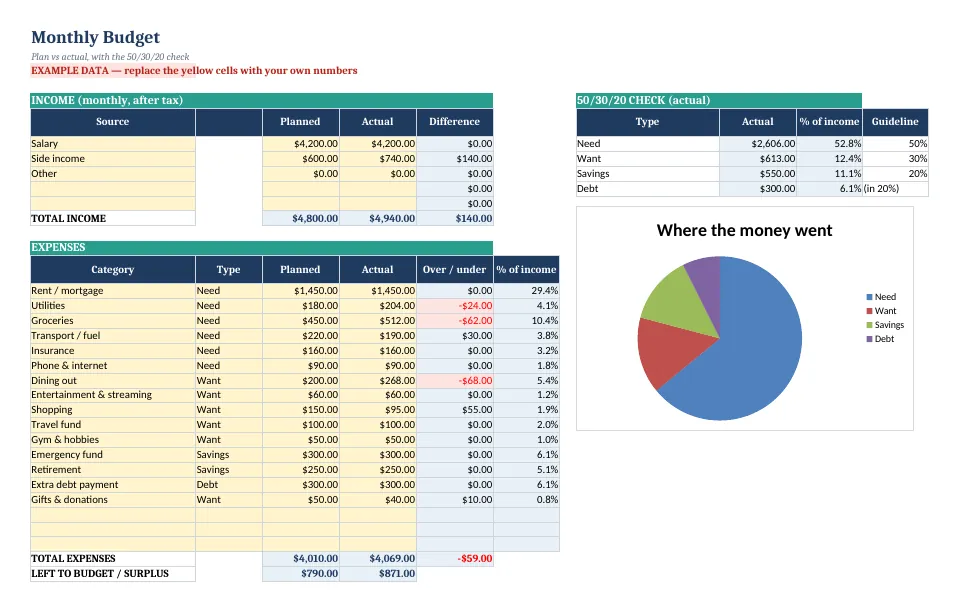
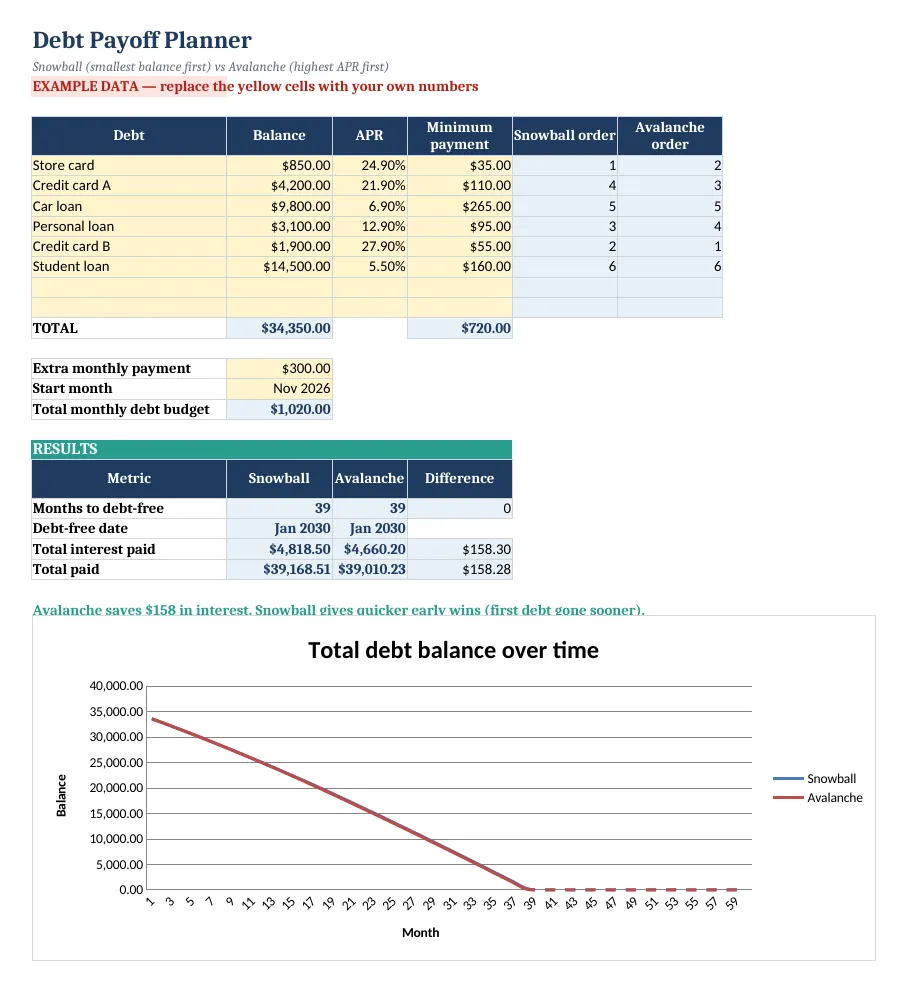
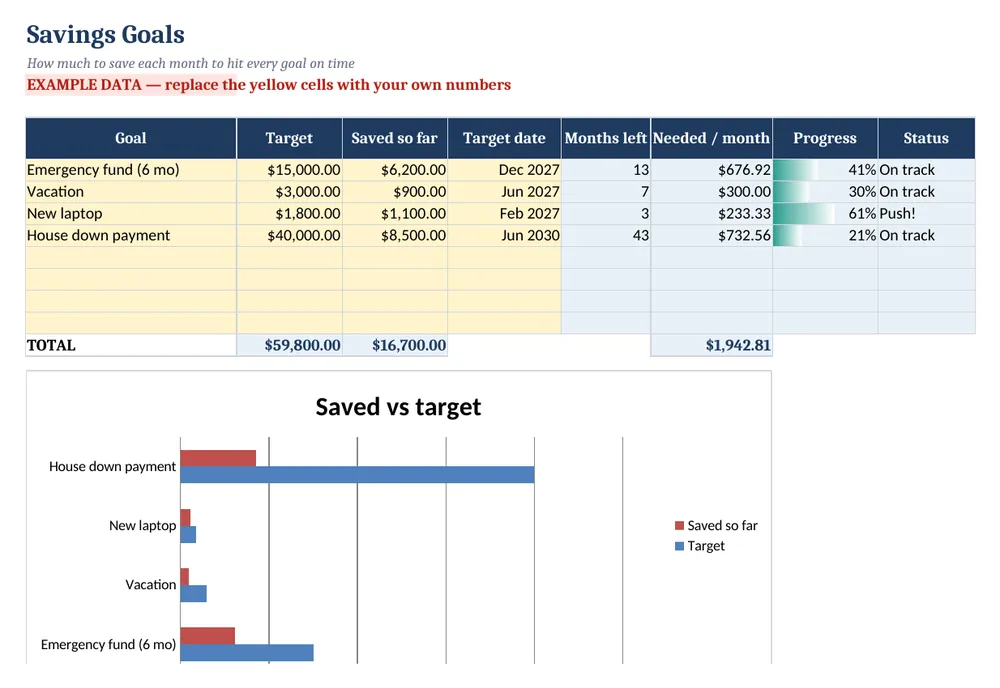
Screenshots show the full Personal Budget & Debt Payoff Planner. The free lite version uses the same layout and formulas, with fewer rows and no charts.
What’s in the free template
This free budget spreadsheet template is the lite version of our Personal Budget & Debt Payoff Planner. It includes a monthly budget with planned and actual columns, a 50/30/20 check, a complete debt snowball payoff schedule and simple savings goals — no app, account or subscription needed.
The download contains these tabs:
- Instructions
- Monthly Budget
- Debt Payoff
- Snowball
- Savings Goals
Yellow cells are your inputs and blue cells are protected formulas, so nothing breaks while you type. Example data is included so you can see the results immediately — replace it with your own numbers when you are ready.
How to use this budget spreadsheet template
Start with take-home pay
Enter your net monthly income — the amount that actually reaches your bank account. If you are not sure, our paycheck calculator estimates it from your salary and state.
Plan each category
Fill in planned amounts for housing, utilities, groceries, transport, insurance, debt payments, savings and fun money. The sheet shows what is left to assign.
Check the 50/30/20 split
The template compares your plan with the popular guideline of 50% needs, 30% wants and 20% savings and debt payoff, so you can see where you are out of balance.
Enter actual spending
At the end of the month, enter what you really spent. Over- and under-spending is highlighted line by line.
List your debts
On Debt Payoff, enter each balance, interest rate and minimum payment, plus any extra you can pay. The Snowball tab builds a month-by-month schedule and your debt-free date.
Tips for better results
- Budget for irregular costs — car repairs, gifts, annual subscriptions — by setting aside a monthly amount for each.
- The snowball method (smallest balance first) builds momentum; the avalanche method (highest rate first) saves the most interest. Both beat minimum payments.
- Review the budget at the same time every month; consistency matters more than precision.
Opening the file in Excel or Google Sheets
Microsoft Excel: open the downloaded .xlsx file directly — Excel 2010 or later on Windows or Mac works. If you see a “Protected View” bar, click Enable Editing.
Google Sheets: go to Google Drive, choose New → File upload, then open the file and pick File → Save as Google Sheets so you can edit and share it. LibreOffice / Numbers: open the file as normal. No macros, add-ins or internet connection are needed.
Free lite vs full version
If you want to know exactly how much interest the avalanche method would save over the snowball, the full planner builds both schedules side by side, adds charts for spending and payoff progress, and includes a quick-start PDF.
| Feature | Free lite | Full version · $9 |
|---|---|---|
| Monthly budget: plan vs actual | ✓ | ✓ |
| 50/30/20 split check | ✓ | ✓ |
| Debt payoff with snowball schedule | ✓ | ✓ |
| Avalanche schedule & snowball vs avalanche comparison | — | ✓ |
| Savings goals with progress | ✓ | ✓ |
| Charts | — | ✓ |
| Quick-start PDF guide | — | ✓ |
| Price | Free | $9 one-time |
Instant download. Secure checkout by Lemon Squeezy. Works in Excel, Google Sheets & LibreOffice.
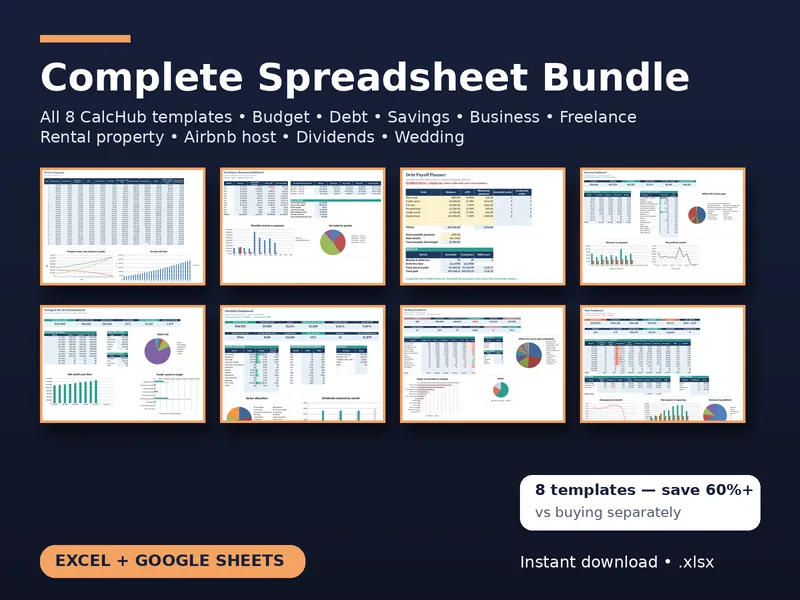
All 8 templates · one download
CalcHub Complete Bundle (All 8 Templates)
$39 $104 one-time · instant download
Every template in one download: budget & debt payoff, savings & net worth, freelancer, small-business bookkeeping, rental property analyzer, short-term rental host, dividend portfolio and wedding budget. Includes 8 quick-start PDF guides and all future updates.
Get the bundle — $39Frequently asked questions
Is this budget template free?
Yes — download it instantly, no sign-up or email. It works in Excel, Google Sheets and LibreOffice.
What is the 50/30/20 rule?
A guideline that splits take-home pay into 50% needs, 30% wants and 20% savings and extra debt payments. It is a starting point, not a strict rule.
Can I use it every month?
Yes. Save a copy for each month, or clear the actual column and start again.